
Understanding Aadhaar Biometric Locking: A Comprehensive Guide
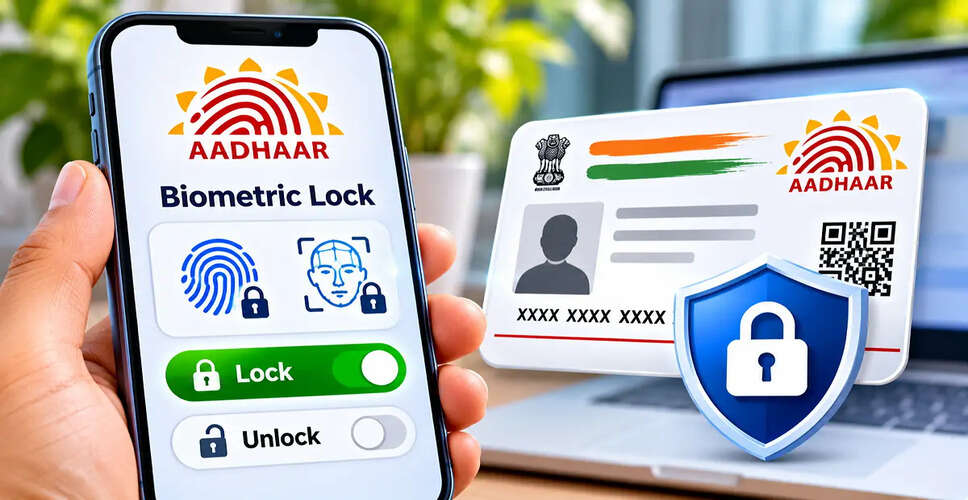

Introduction to Aadhaar Biometric Locking
Aadhaar Biometric Lock 2026: Aadhaar serves as a crucial tool for identity verification across various sectors in India, including banking and government welfare programs. While some services utilize OTP verification, others may require biometric methods such as fingerprints, iris scans, or facial recognition.
To empower users in managing their biometric data, the Unique Identification Authority of India (UIDAI) has introduced the Aadhaar Biometric Locking feature. This allows Aadhaar holders to limit the use of their biometric data and unlock it temporarily when needed for verification.
The locking process can typically be completed online via UIDAI's official website, provided the user has access to the registered mobile number for OTP verification.
This article explains how Aadhaar biometric locking functions, how to enable or disable it, and the precautions users should take.
What Is Aadhaar Biometric Locking?
Aadhaar Biometric Locking is a security feature that enables users to restrict the use of their biometric data for Aadhaar authentication.
When this feature is activated, attempts to authenticate using fingerprints, iris scans, or facial recognition will generally be blocked.
For instance, if a user has locked their biometrics and tries to authenticate using their fingerprint at a service center, the request may be denied due to the restriction.
This feature does not erase biometric data from UIDAI's records; it merely restricts its use for authentication purposes.
Users can unlock their biometrics temporarily when necessary.
Steps to Lock Aadhaar Biometrics Online
UIDAI offers an online platform for managing biometric locking through its official services.
Before proceeding, ensure that the mobile number linked to your Aadhaar is active and accessible.
Follow these steps:
- Visit the official UIDAI website at https://uidai.gov.in.
- Navigate to the My Aadhaar section.
- Locate the Lock/Unlock Biometrics service.
- If redirected, follow the link to the official myAadhaar portal.
- Input the required Aadhaar-related information as prompted.
- Complete OTP verification using your registered mobile number.
- Select the option to enable biometric locking.
- Review the instructions and confirm your request.
- Check for a confirmation message or the status of your biometric lock.
Once processed, biometric authentication via fingerprints, iris scans, and facial recognition will remain restricted until the lock status is altered.
Note that the specific menu labels and authentication steps may change with updates to UIDAI's portal.
How to Temporarily Unlock Aadhaar Biometrics
There may be instances where biometric authentication is necessary for banking, government services, or identity verification.
If your biometrics are locked, you can utilize UIDAI's temporary unlocking feature.
Here’s how:
- Access the official myAadhaar portal at https://myaadhaar.uidai.gov.in.
- Go to the biometric locking and unlocking service.
- Input the required Aadhaar details.
- Verify your identity using the OTP sent to your registered mobile number.
- Select Temporary Unlock, if available.
- Confirm your request by following the on-screen prompts.
- Complete the necessary fingerprint, iris, or facial authentication during the allowed timeframe.
Temporary unlocking is designed to facilitate biometric authentication for a limited duration.
According to UIDAI's rules, the biometric restriction will be reinstated after the temporary unlocking period concludes.
Users should verify the confirmation displayed by the portal regarding the applicable duration and status.
Temporary Unlock vs Disable Biometric Lock
Temporary unlocking and disabling biometric locking are distinct actions.
| Feature | What It Does |
|---|---|
| Biometric Lock | Restricts fingerprint, iris, and face authentication |
| Temporary Unlock | Allows biometric authentication for a limited period |
| Disable Biometric Lock | Removes the biometric locking restriction until re-enabled |
If you require fingerprint authentication for a single service, temporary unlocking may suffice.
Choosing to disable biometric locking entirely means the restriction will not apply until you enable it again.
Users should select the option that best fits their needs rather than assuming both actions yield the same outcome.
Which Aadhaar Services Are Affected?
Biometric locking primarily impacts authentication methods that depend on biometric data.
| Authentication Method | Expected Status When Biometrics Are Locked |
|---|---|
| Fingerprint authentication | Restricted |
| Iris authentication | Restricted |
| Face authentication | Restricted |
| OTP-based authentication | May remain available where supported |
| Other non-biometric services | Subject to the relevant service rules |
Important: Locking Aadhaar biometrics does not deactivate the Aadhaar number or invalidate the Aadhaar card.
However, services requiring biometric authentication may not be completed until the restriction is temporarily lifted.
Can You Lock Aadhaar Biometrics Through a Mobile App?
UIDAI also offers Aadhaar-related services via its official mobile applications.
Depending on the app version and features available, options for biometric locking or unlocking may be accessible through the official UIDAI app.
Users should verify the currently supported features before relying on the mobile application.
Avoid third-party applications that claim to provide Aadhaar biometric unlocking, especially those requesting Aadhaar OTPs or sensitive information.
What Does Aadhaar Authentication Error Code 330 Mean?
Aadhaar authentication Error Code 330 is linked to biometric locking.
If biometric authentication is attempted while the Aadhaar holder's biometrics are locked, the request may fail.
In such cases, users can check their biometric locking status through the official UIDAI portal.
If biometric verification is essential, they may temporarily unlock their biometrics and retry the authentication process.
However, an authentication failure should not be automatically attributed to biometric locking without reviewing the actual error message.
Aadhaar Lock vs Biometric Lock: What Is the Difference?
UIDAI provides various security controls for Aadhaar authentication.
Biometric Lock restricts authentication through fingerprints, iris scans, and facial recognition.
Aadhaar Number Lock is a separate feature designed to limit authentication using the Aadhaar number itself, following UIDAI's procedures.
These two features should not be confused.
Residents wishing to restrict only biometric authentication can opt for the biometric locking feature.
Before using Aadhaar Number Lock, they should review UIDAI's official guidelines, including the process for restoring access when needed.
What If Your Mobile Number Is Not Linked to Aadhaar?
Online biometric locking and unlocking typically require OTP verification through the mobile number linked to Aadhaar.
If the registered number is inactive, unavailable, or not updated, the online process may not be successfully completed.
In such cases, residents should follow UIDAI's prescribed procedure for registering or updating their mobile number.
The applicable process can be found on the official UIDAI website or at an authorized Aadhaar service center.
Once the mobile number is updated and active, the resident can attempt to access the online biometric security service again.
How to Check Aadhaar Authentication History
UIDAI also offers an Aadhaar Authentication History service that enables residents to review their authentication records.
This can be beneficial if someone suspects that their Aadhaar details have been used for verification without their consent.
To access this service:
- Visit the official UIDAI website.
- Locate the Aadhaar Authentication History option.
- Input the requested identification details.
- Complete OTP verification.
- Review the available authentication records.
Users may be able to review authentication information covering the past six months, subject to UIDAI's limits.
If any unfamiliar transactions appear, contact the relevant service provider or UIDAI for assistance.
While authentication history can help identify unusual activity, it does not necessarily provide a complete record of every instance when Aadhaar information was shared.
Important Safety Tips for Aadhaar Holders
While biometric locking adds an extra layer of control, it should be complemented with other security measures.
- Keep your Aadhaar-registered mobile number active.
- Never share Aadhaar OTPs with unknown individuals.
- Utilize only official UIDAI websites and authorized applications.
- Consider keeping biometrics locked when not frequently required.
- Check the biometric lock status after completing verification.
- Review authentication history if you notice any suspicious activity.
Biometric locking serves as a preventive measure, but it does not guarantee protection against all forms of identity fraud.
Where to Get Help With Aadhaar Biometric Locking
If you encounter issues with locking or unlocking Aadhaar biometrics, reach out to UIDAI through its official support channels.
UIDAI Helpline: 1947
Official Website: https://uidai.gov.in
myAadhaar Portal: https://myaadhaar.uidai.gov.in
Users should refrain from sharing personal information through unofficial customer care numbers circulated on social media.
Conclusion
Aadhaar Biometric Locking enables residents to restrict fingerprint, iris, and facial authentication when these methods are unnecessary.
This feature can typically be managed online via UIDAI's official portal, using OTP verification through the registered mobile number.
When biometric authentication is required, residents can temporarily unlock their biometrics to complete the necessary verification.
The key distinction is that biometric locking restricts biometric authentication; it does not cancel Aadhaar or automatically disable all Aadhaar-related services.
Residents should adhere to the instructions provided on UIDAI's official portal and verify the locking status after making any changes.
Editorial Note: The procedures and features described are based on the supplied article. Portal menus, temporary unlocking duration, and supported authentication methods should be checked against UIDAI's current official instructions before use.