
Troubleshooting iPhone 5G Connectivity Issues: What to Do When LTE Appears

Understanding iPhone 5G Network Issues
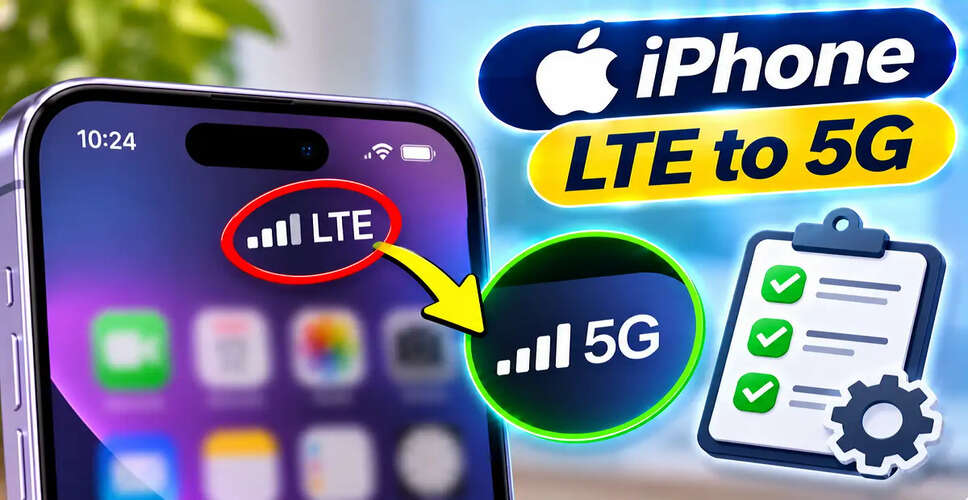
iPhone 5G Network Issues in 2026: Are you noticing that your iPhone shows LTE instead of 5G, despite having a device that supports 5G? This situation doesn’t necessarily indicate a malfunction. Factors such as network coverage, mobile data settings, carrier limitations, and temporary connectivity issues can lead to your iPhone defaulting to LTE.
Apple's 5G-enabled iPhones are designed to switch between network types based on signal strength and battery life. When the 5G Auto feature is activated, the device may opt for LTE if it determines that 5G does not significantly enhance performance.
If your iPhone used to connect to 5G in the same area but now consistently shows LTE, there are several troubleshooting steps you can take.
Here are seven methods to check and potentially restore 5G connectivity on your iPhone.
Reasons Your iPhone Displays LTE Instead of 5G
When LTE is visible in your iPhone's status bar, it indicates that the device is connected to an LTE network rather than a 5G one.
This can occur for various reasons, such as weak 5G coverage, an incompatible mobile plan, network congestion, or incorrect cellular settings.
Your iPhone might also switch to LTE automatically to save battery life.
Before adjusting any advanced settings, ensure that 5G is available in your area and that your mobile provider supports it.
1. Ensure 5G is Enabled on Your iPhone
The first step is to check your cellular network settings.
Navigate to:
Settings > Cellular > Cellular Data Options > Voice & Data
Depending on your location, this menu might be labeled as Mobile Data or Mobile Service instead of Cellular.
On compatible devices and plans, you may find the following options:
| Network Setting | Function |
|---|---|
| 5G Auto | Automatically switches between 5G and LTE based on performance and battery considerations |
| 5G On | Utilizes 5G whenever available |
| LTE | Uses LTE even when 5G is accessible |
If LTE is selected, switch to either 5G Auto or 5G On.
For daily use, 5G Auto is typically the best choice as it balances performance and battery life.
Choosing 5G On may lead to increased battery usage in certain scenarios.
2. Confirm Your 5G Plan and Network Availability
Having a 5G-compatible iPhone does not guarantee access to a 5G network.
Your mobile provider must offer 5G, your plan must be eligible, and 5G coverage must exist in your area.
For instance, 5G signals may be weaker indoors, in basements, or in locations far from network towers.
Try moving to an open space to see if the network indicator changes.
If 5G works in other locations but not where you are, the issue may be related to local coverage rather than your device.
You can also check with your telecom provider's app or customer support to verify your 5G eligibility.
3. Toggle Airplane Mode
Activating Airplane Mode can help resolve temporary mobile network issues.
Enabling it disconnects your phone from cellular networks, and turning it off allows it to reconnect.
To do this:
- Open Control Center or Settings.
- Activate Airplane Mode.
- Wait about 15 seconds.
- Disable Airplane Mode.
- Allow your iPhone to reconnect to the mobile network.
- Check if 5G appears in the status bar.
This method may assist when the phone is facing a temporary network registration issue.
However, it won't resolve problems related to unavailable 5G coverage or an ineligible mobile plan.
4. Restart Your iPhone
If toggling Airplane Mode doesn’t work, try restarting your iPhone.
A restart can sometimes fix temporary software glitches that affect mobile connectivity.
Power off the device using the standard shutdown method, wait a moment, and then turn it back on.
After restarting, give the phone time to reconnect to your mobile provider.
Then check if the network indicator shows 5G.
Restarting is a basic troubleshooting step and does not erase your personal data.
5. Check for Carrier Settings Updates
Carrier settings are essential for your iPhone to connect to your mobile provider's network.
These settings may include updates related to network connectivity and supported services.
If you have recently changed your SIM card, activated an eSIM, or switched providers, checking for carrier settings updates can be beneficial.
To check:
- Open Settings.
- Tap General.
- Select About.
- Wait a few seconds.
If an update is available, your iPhone may prompt you to install it.
Follow the on-screen instructions and check the network connection afterward.
6. Update Your iPhone to the Latest iOS Version
Software updates can include bug fixes and enhancements that impact mobile network connectivity.
If your iPhone is running an outdated iOS version, check for available updates.
Settings > General > Software Update
Before installing an update, back up important data and ensure your device has enough battery and a stable internet connection.
After the update, check the network indicator again.
An iOS update may resolve certain software-related issues, but it cannot guarantee 5G connectivity if the operator's network is unavailable.
7. Reset Network Settings as a Last Resort
If the previous methods fail, resetting network settings may help fix persistent configuration issues.
This should only be considered after trying simpler solutions.
Follow this path:
Settings > General > Transfer or Reset iPhone > Reset > Reset Network Settings
This process will not erase your photos, apps, or other personal content.
However, it will reset network-related preferences, including saved Wi-Fi networks and passwords, and may affect certain VPN or APN settings.
Ensure you have the necessary Wi-Fi passwords and network configuration details before proceeding.
After the reset, reconnect to the network and check if 5G is available.
What to Do If Your iPhone Still Shows LTE?
If your iPhone supports 5G, your plan is eligible, and your location has 5G coverage, but it still shows LTE, reach out to your mobile provider.
Ask customer support to verify:
- Whether 5G service is active on your mobile number.
- If your prepaid or postpaid plan supports 5G.
- If there is a network outage affecting your area.
- Whether your SIM or eSIM is correctly provisioned.
- If any account restrictions are preventing access to 5G.
If the issue stems from the telecom network, adjusting your iPhone settings may not resolve it.
If the provider confirms that everything is functioning correctly, Apple Support can assist in investigating a potential device-related issue.
Is LTE Safe to Use Instead of 5G?
Absolutely. LTE is a well-established mobile network technology, and seeing LTE instead of 5G does not inherently indicate a security concern or hardware malfunction.
LTE can support browsing, messaging, video calls, streaming, and many other online activities.
While 5G can offer higher speeds and lower latency, actual performance is influenced by coverage, network congestion, and signal quality.
In some cases, a strong LTE connection may outperform a weak 5G signal.
5G Auto vs 5G On: Which Setting Should You Choose?
For most users, 5G Auto is a practical choice.
This setting allows the iPhone to utilize 5G when advantageous while switching to LTE when necessary.
5G On can be beneficial for checking 5G availability in specific areas.
However, enabling 5G On does not guarantee a connection to a 5G network that is unavailable or unsupported by your mobile provider.
Conclusion
If your iPhone shows LTE instead of 5G, there’s no immediate need to assume the device is defective.
The issue may relate to cellular settings, network coverage, carrier configurations, or temporary software glitches.
Start by checking the Voice & Data settings and confirming your 5G plan eligibility. Next, try toggling Airplane Mode, restarting the device, and checking for carrier settings or iOS updates.
If the problem persists, consider resetting network settings or contacting your telecom provider.
Keep in mind: 5G connectivity relies on your device, mobile plan, and network coverage. Simply changing a setting cannot guarantee a 5G connection.