
Mastering Google Translate's Camera Feature for Effortless Translations
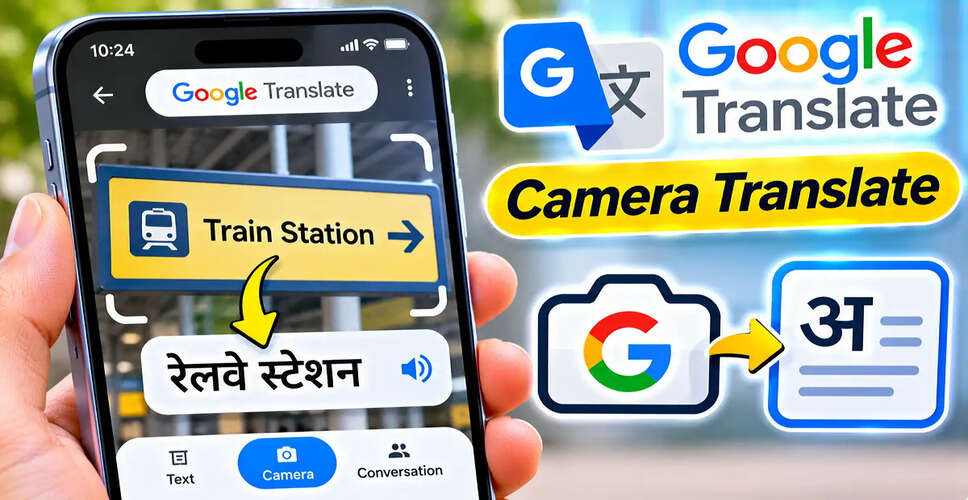

Introduction to Google Translate's Camera Functionality
With Google Translate's camera feature, translating text in foreign languages has become a breeze. Instead of typing out every word, users can simply point their smartphone camera at the text they wish to translate, making it especially handy for travelers and anyone encountering unfamiliar languages.
Understanding the Camera Feature
This innovative feature utilizes image recognition technology combined with machine translation to convert written text into a chosen language. For instance, if you see a sign in French, you can easily translate it into Hindi or English by using your smartphone camera.
Steps to Translate Text Using an Android Device
Android users can access this feature through the Google Translate app. If you haven't installed it yet, you can download it from the Google Play Store. Here's how to use it:
- Launch the Google Translate app on your Android device.
- Select the language of the text you want to translate.
- Choose Hindi, English, or another target language.
- If unsure of the original language, opt for the Detect Language feature.
- Tap the Camera icon.
- Point your camera at the text you wish to translate.
- Wait for the app to process and display the translation.
- Utilize the capture option to save the image for easier reading.
Using Google Translate Camera on iPhone
iPhone users can also take advantage of this camera translation feature through the Google Translate app. The process is quite similar to that on Android, with slight variations in the interface. Follow these steps:
- Download Google Translate from the Apple App Store if you haven't already.
- Open the app.
- Select the original language or use the automatic detection feature.
- Choose the target language for translation.
- Tap the Camera icon.
- Position your camera in front of the text.
- Allow the app to recognize and translate the text.
- Capture the image for a closer look at the translation.
Translating Text from Saved Images
Google Translate isn't limited to live camera translations; it can also translate text from images already saved on your device. This is particularly useful for translating notices or labels sent via messaging apps. To translate a saved image, follow these steps:
- Open the Google Translate app.
- Tap on the Camera icon.
- Select the option to import an image from your gallery.
- Choose the image containing the text.
- Wait for the app to recognize and translate the text.
- Review the translated content.
Offline Translation Capabilities
Google Translate supports offline translation for certain languages, but users must download the necessary language packs beforehand. To prepare for offline translation, do the following:
- Open the Google Translate app.
- Access the language selection menu.
- Locate the desired language.
- Tap the download icon if available.
- Download any required language packs.
Types of Text You Can Translate
The camera feature can assist with various everyday tasks, including:
| Type of Text | Practical Use |
|---|---|
| Restaurant menus | Understand food items and descriptions |
| Road signs | Read directions and general information |
| Product packaging | Comprehend labels and instructions |
| Books and study notes | Translate educational materials |
| Public notices | Understand announcements |
| Photos and screenshots | Translate text from saved images |
| General documents | Get an initial grasp of unfamiliar text |
Troubleshooting Common Issues
If the app struggles to recognize text or provide accurate translations, it may be due to poor lighting, blurry images, or incorrect language settings. Here are some common issues and their solutions:
| Problem | Possible Solution |
|---|---|
| Camera cannot recognize text | Move closer and stabilize your phone |
| Translation appears incorrect | Verify the original language selection |
| Image is too dark | Improve lighting conditions |
| Text appears blurry | Adjust the camera angle and focus |
| Offline translation fails | Ensure required language packs are installed |
| Small text is hard to read | Capture a clearer image and zoom in |
Understanding the Detect Language Feature
The Detect Language option is beneficial when you're unsure of the language in a photograph or sign. Instead of manually selecting the original language, you can let Google Translate identify it for you. However, this feature may not always be accurate, especially with short or unclear text.
Copying Text from Images
Users may have the option to select and copy recognized text from images, which is useful for saving or sharing translated information. The ability to copy text may vary based on the device and app version.
Limitations of Camera Translation
While camera translation is convenient, it may not always be accurate. Handwritten text, decorative fonts, and poorly captured documents can lead to errors. It's crucial to verify translations for important medical, legal, or safety-related content.
Who Can Benefit from This Feature?
This feature is particularly advantageous for individuals frequently encountering text in foreign languages. Travelers can use it to navigate signs and menus, while students can gain insights into educational materials. Online shoppers can also benefit from translating product information.
Conclusion
Google Translate's camera feature offers a practical solution for translating text from various sources, including signs, menus, and documents. While it supports offline translation for certain languages, the accuracy of results can depend on image quality and text complexity. Always verify critical translations to ensure reliability.