
Managing Your Location Data on Snapchat's My AI Feature
Understanding Location Data Usage on Snapchat
As artificial intelligence becomes increasingly embedded in social media, it's crucial to comprehend how your data is utilized. Snapchat has launched My AI to provide tailored responses, which may involve using your location data. If you're looking to manage or limit the location information shared with My AI, this guide will assist you in maintaining control.
How Location Sharing Functions on Snapchat
Snapchat prioritizes user privacy. By default, the app does not track your precise location unless you grant it permission. Sharing your location can enhance features such as:
- Snap Map
- Location-based Lenses
- Search suggestions
- Advertisements
With Snap Map, you can control who sees your location, either sharing it with selected friends or activating Ghost Mode to keep your whereabouts hidden.
The Role of Location Information in My AI
My AI does not gather new location data on its own; it utilizes the location information you have previously chosen to share with Snapchat. When you first engage with My AI, you will be informed that it may use this shared data to customize responses. For instance:
- Asking for nearby dining options may yield suggestions based on your shared location.
- Inquiring about local events could result in recommendations relevant to your current area.
If you disable location access, My AI will refrain from using precise location data in its responses.
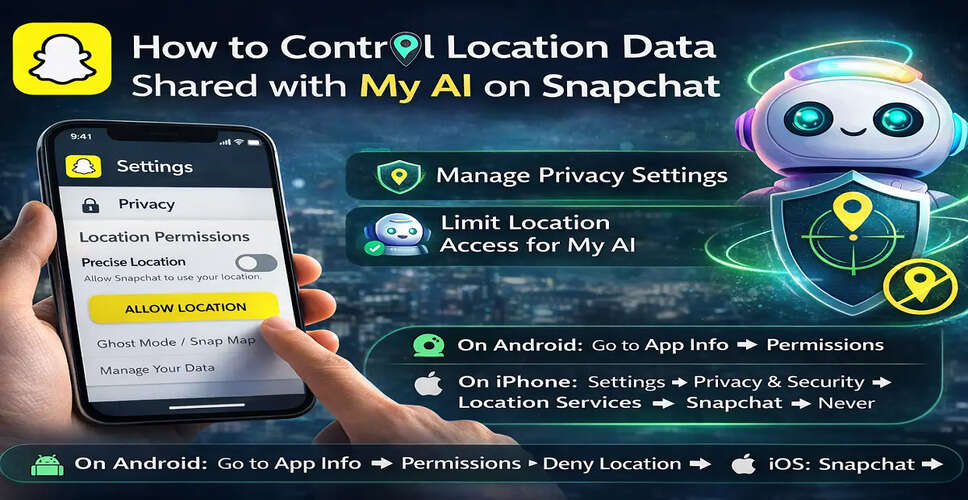
Disabling Location Sharing on Snapchat (Android)
For Android users, follow these steps to stop sharing your location:
- Long press the Snapchat app icon.
- Select 'App info.'
- Tap on 'Permissions.'
- Choose 'Location.'
- Select 'Deny' to restrict location access.
Disabling Location Sharing on Snapchat (iPhone)
For iOS users, here’s how to stop sharing your location:
- Open the Settings app.
- Scroll to 'Privacy & Security.'
- Tap on 'Location Services.'
- Locate and select Snapchat.
- Under 'Allow Location Access,' choose 'Never.'
This action will prevent Snapchat, and consequently My AI, from accessing your device's location.
Important Consideration Regarding Cached Data
If you've recently altered your location permissions, some previously stored location data may still be temporarily cached. This data will eventually refresh according to your updated privacy settings.
Clearing Location Influence from My AI
To minimize the effect of location data on My AI's responses, consider the following steps:
- Disable location permissions as outlined above.
- Avoid sharing your location directly in conversations with My AI.
- Report any inaccurate or location-specific suggestions to Snapchat support to enhance AI responses.
It's vital to manage your digital privacy, especially when utilizing AI-driven features. By reviewing and adjusting your location permissions, you can influence how My AI customizes your experience.
Conclusion
Snapchat offers adaptable privacy settings, enabling you to find a balance between personalized features and data security. Taking a few moments to update your location settings ensures that your information remains under your control while you continue to enjoy the platform safely.